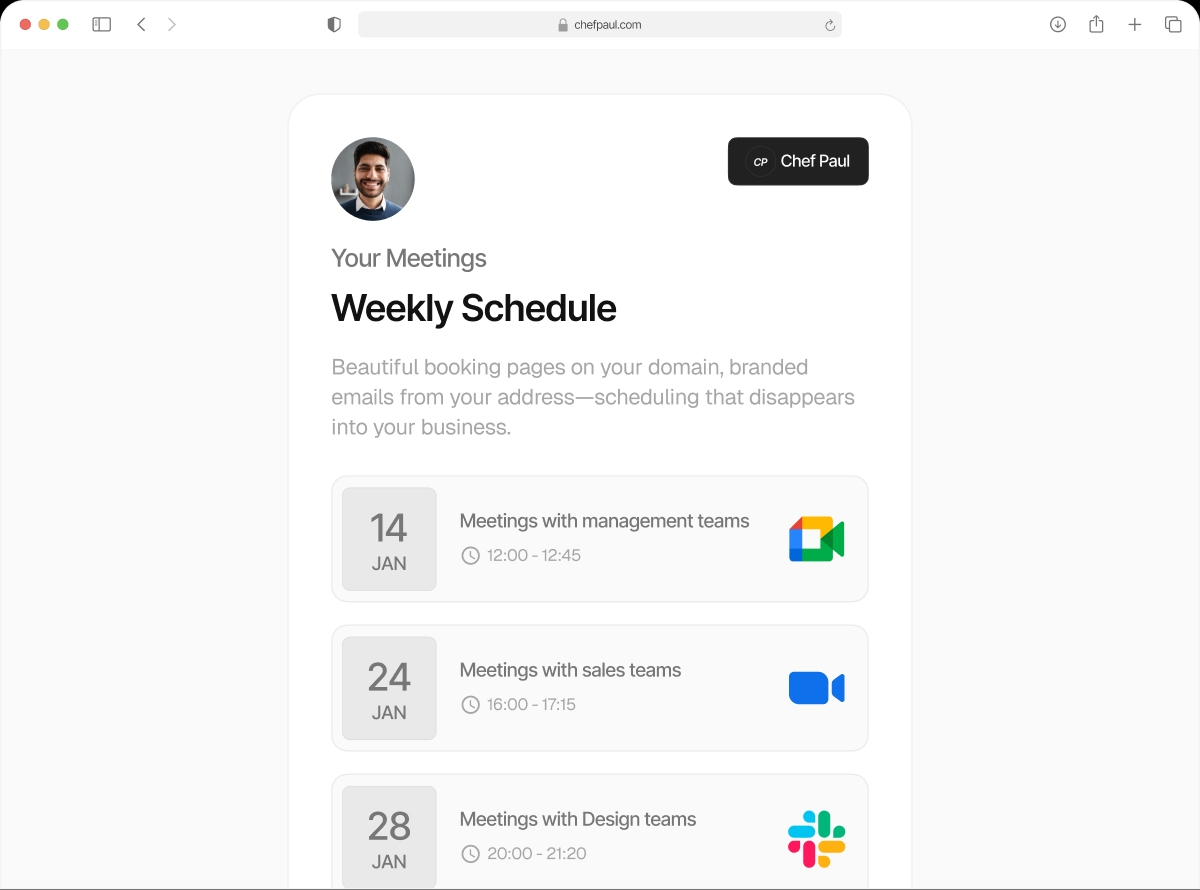

Booking happens. Your systems know immediately.
Connect schedule.so to any external system with webhooks. A new booking fires a POST to your CRM. A cancellation fires an alert to your ops team. A reschedule updates your internal database. Custom headers, custom body, three trigger events. No Zapier required.
Three trigger events. Four things you can configure per webhook.
booking.created
Fires immediately when a new booking is confirmed. Create a CRM contact, add to a Notion database, post a Slack notification, or trigger any downstream process.
booking.rescheduled
Fires when an existing booking is moved to a new time. Update records in your CRM, notify the relevant team member, or log the change.
booking.cancelled
Fires when a booking is cancelled. Close a deal stage in your CRM, remove from a drip sequence, or trigger a win-back flow.
Any endpoint — GET or POST
Any publicly accessible URL. Your own API, a third-party service, or a serverless function. GET or POST — your choice.
Custom request headers
Add authentication headers, API keys, or any custom header your receiving endpoint needs. Full control over auth.
Custom request body
Send additional data fields alongside the booking payload. Add your own metadata, routing keys, or context.
Set up a webhook in under 2 minutes
No middleware, no Zapier account, no added latency. Fires directly to your endpoint.
Add your first webhook freeGo to Developer Settings > Webhooks

Navigate to Settings > Developer > Webhooks and click Add Webhook.
Enter Your Endpoint URL

Paste the URL of your API endpoint, CRM webhook receiver, or serverless function. Choose GET or POST.
Select Trigger Events & Add Headers

Choose which events fire this webhook — booking.created, booking.rescheduled, booking.cancelled, or all three. Add any custom headers your endpoint needs.
Save & Test

Save the webhook. Every matching event will now fire a request to your endpoint. Check the delivery log to confirm it's working.
Webhooks vs Zapier
| Feature | schedule.so Webhooks | Zapier |
|---|---|---|
| Setup | Paste URL + select triggers | Build a multi-step Zap |
| Latency | Direct — fires instantly | Middleman delay (1-5 sec typical) |
| Cost | Included — no extra charge | Separate Zapier subscription required |
| Custom headers | ✓ Full control | Limited per Zap structure |
| Delivery log | ✓ View + reattempt | Zap history (paid plans) |
Frequently asked questions
Yes. You can configure each webhook to send either a GET request or a POST request, depending on what your receiving endpoint requires.
Yes. Add your authentication key or token as a custom request header — for example “Authorization: Bearer your-token” or a custom X-Auth header.
Yes. You can create multiple webhooks for the same trigger event. All configured webhooks will fire when that event occurs.
Yes. You can view recent webhook deliveries and their status from your webhook settings. Useful for debugging failed deliveries and redelivering missed events.
schedule.so will attempt to redeliver failed webhooks. Check your webhook delivery log for failures and reattempt status.
Your booking tool should talk to your other tools.
Set up webhooks in minutes. No Zapier required.