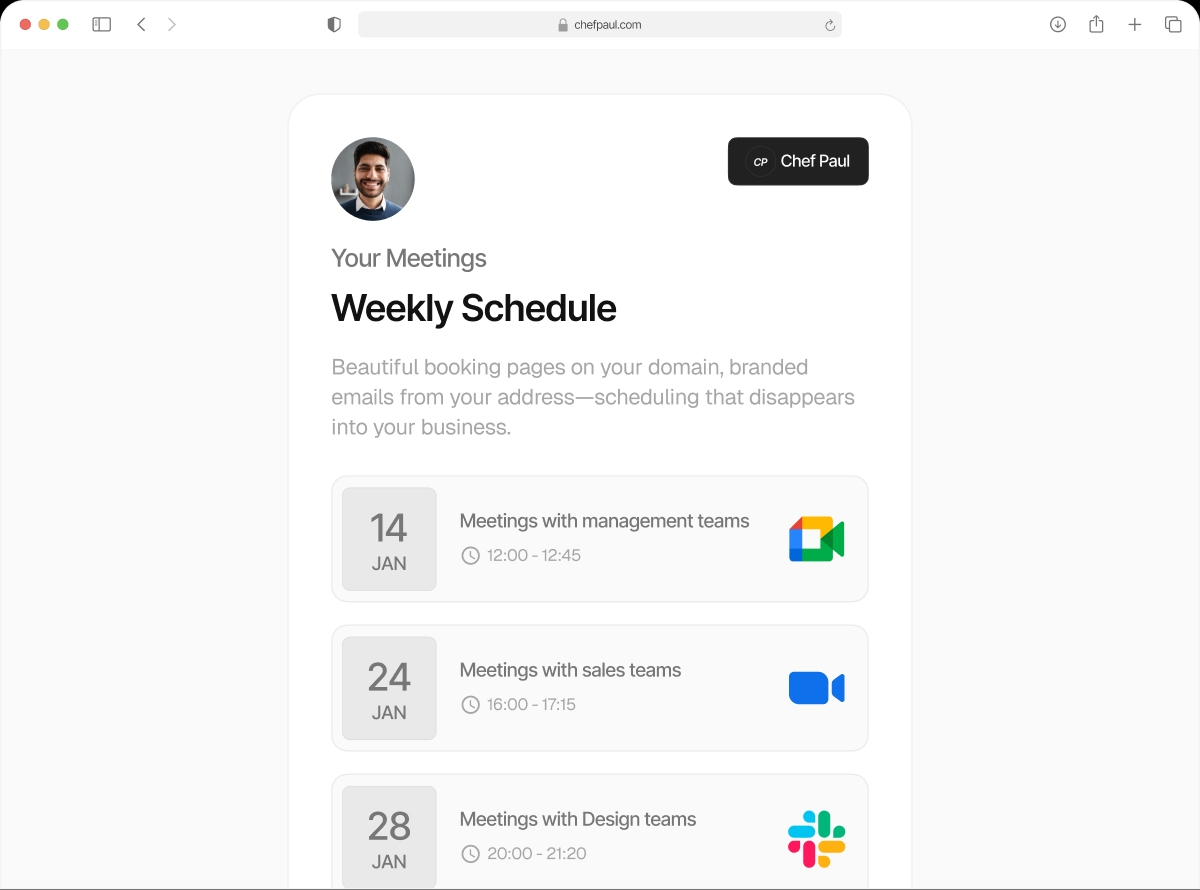

Connect every calendar. Never get double booked again.
You use Google Calendar for work. Outlook for a second job. Apple Calendar for personal commitments. Each one has events the others don't know about. schedule.so connects all three simultaneously and checks every one before showing a single available slot.
Here's how double bookings happen.
You have a consulting call booked on your personal Google Calendar at 3pm on Thursday. You send your Calendly link to a new prospect. They see 3pm Thursday as open — because Calendly is only watching your work calendar. They book it. You now have two meetings at the same time.
It happens because most scheduling tools only check one calendar. schedule.so connects every calendar you own and checks all of them simultaneously.
Single-calendar tools
With schedule.so
VerifiedWorks with every major calendar
Google Calendar
Connect your personal or Google Workspace calendar. Works with multiple Gmail accounts simultaneously.
Microsoft Outlook
Connect your Outlook or Microsoft 365 calendar. Works with Exchange and personal Outlook accounts.
Apple Calendar
Connect via CalDAV. Works with iCloud Calendar on Mac, iPhone, and iPad.
Real-time conflict detection
Availability is checked live when someone opens your booking page, not cached. A slot blocked 5 minutes ago is already gone.
Per-event calendar selection
Choose exactly which calendars to check for each event type. A 15-minute intro might check one calendar; a 2-hour deep-dive checks all three.
Write new bookings anywhere
When someone books, the new event can be added to whichever calendar you choose — not just the one you signed up with.
How multi-calendar conflict checking works
Connect once. Checks happen automatically on every booking page load.
Connect your calendars freeConnect Your Calendars

Go to Settings > My Calendars. Click Connect next to Google, Outlook, or Apple. Each one authorises with a standard OAuth flow — no passwords shared, just permission granted.
Mark Which Calendars to Check

In your event type settings, under Advanced, select which calendars to check. You can check all of them or a specific subset per event type.
Someone Opens Your Booking Page

When a visitor loads your booking calendar, schedule.so queries all your connected calendars in real time for the available date range.
Conflicts Are Removed Automatically

Any time slot where any connected calendar has an existing event is marked unavailable and hidden. The visitor only ever sees genuinely open slots.
Multi-calendar support: schedule.so vs Calendly
| Feature | Schedule.so | Calendly |
|---|---|---|
| Calendars supported | Google, Outlook, Apple, native | Google, Outlook (paid plans) |
| Simultaneous conflict check | All connected calendars at once | One primary calendar |
| Per-event calendar selection | Limited | |
| Real-time availability check | ||
| Included on free plan | Paid plans only |
Frequently asked questions
Yes. You can connect multiple Google accounts and select which calendars within each account to check for conflicts.
schedule.so reads your calendar to check for conflicts and writes new booking events to your calendar. We do not read the content of your existing events — only whether a time slot is free or busy.
The conflict check is done in real time when someone opens your booking page. Any events added to your connected calendars are picked up immediately — no manual sync needed.
Yes. In your event type settings, you can select which connected calendar receives the new booking event.
Yes. Recurring events on your connected calendars are detected as conflicts, so those recurring blocked times will not appear as bookable slots.
You have more than one calendar. Your booking tool should know that.
Connect all your calendars and eliminate double bookings — free.