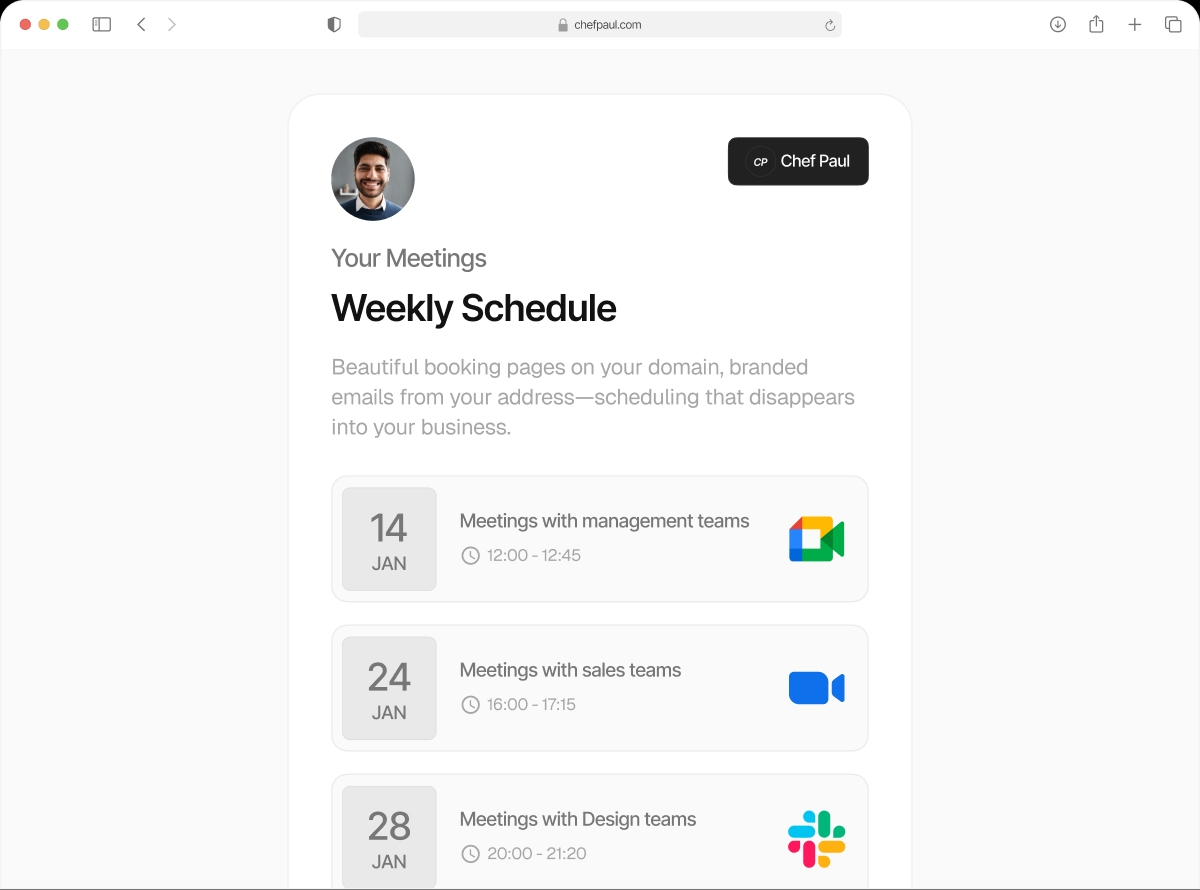

Booking confirmed. Follow-up sent. Reminder queued. You did nothing.
Every booking triggers a sequence. Confirmation goes out immediately. A reminder fires the day before. A follow-up lands an hour after the meeting ends. You build the sequence once. It runs on every booking, forever, without you touching it.
Five events that can trigger an automation
New Booking
Fires when someone books. Send an immediate confirmation, a welcome email, or a pre-work questionnaire link.
Cancellation
Fires when a booking is cancelled. Send a cancellation acknowledgement, offer to reschedule, or capture feedback.
Reschedule
Fires when a booking is moved. Send an updated confirmation with the new time so the client is never confused.
Before Meeting Starts
Fires X minutes, hours, or days before the meeting. The reminder email. The "here is your link" email. Preparation notes.
After Meeting Ends
Fires X minutes, hours, or days after the meeting ends. Follow-up email, feedback request, next steps, invoice link.
Chain Multiple Emails per Trigger
Add multiple emails to a single trigger with different timing. One sequence: confirm now, remind tomorrow, follow up after.
An example sequence for a coaching session
All four emails are configured in one place. Every client who books gets the same sequence. You're not touching a single email manually.
Build your first automation freeBooking Confirmed

"You're booked. Here's what to prepare." Sent the instant someone books — sets the tone and gives them everything they need.
Reminder Email

"Your session is tomorrow. Here is your link." Timed perfectly so it's top of mind without being annoying. Reduces no-shows significantly.
Follow-Up Email

"Thanks for the session. Here are your action points." Strikes while the meeting is fresh — your client gets next steps before they've had time to forget.
Check-In Email

"How is the homework going? Book your next session." The automated nudge that keeps the relationship alive — and drives repeat bookings.
What the email builder includes
Visual email builder
Drag-and-drop blocks. Add text, headings, dividers. No code, no HTML required.
Personalisation variables
Insert event name, date, time, timezone, meeting link, attendee name, and email automatically.
Your own logo
Upload your logo and it appears in every email. Consistent branding across every touchpoint.
Hide schedule.so branding
Remove our branding from the email footer. The email looks like it came from you, not a scheduling tool.
Timing control
Send immediately, or after X minutes, X hours, or X days. Full control over when each email in the chain fires.
Sent via Custom SMTP
Combine with Custom SMTP and every automation email goes from your email address, not ours.
Frequently asked questions
Yes. You can chain multiple emails on a single trigger. For example, on “new booking”: send a confirmation immediately, then send a reminder 24 hours before the meeting, then send a follow-up 1 hour after.
Yes. You create email templates in the Email Notifications section, then assign them to event types. One template can be used across all your event types.
Yes. Use the @attendee_name variable in the subject line or body and it will be replaced with the actual attendee’s name for each booking.
Yes. Automations work with schedule.so’s default email sending. Adding Custom SMTP simply makes the emails appear from your domain instead of ours.
Automations are set at the event type level. You can turn them on or off per event type, but not for individual bookings.
Set the sequence once. Run it on every booking forever.
Confirmation, reminder, follow-up — fully automated, fully yours.