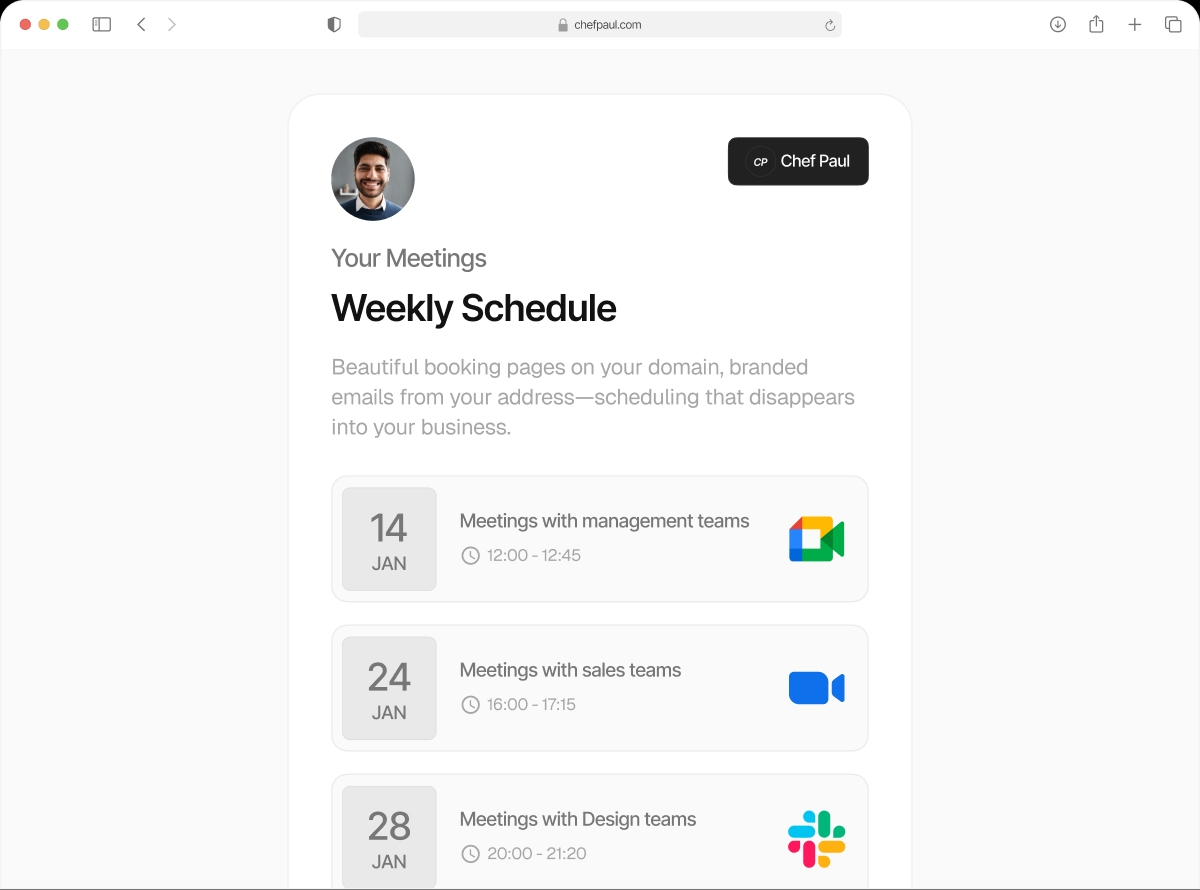

Your availability, your rules. Multiple schedules, multiple time windows.
Most scheduling tools give you a single 9-to-5 window. schedule.so lets you create multiple named availability schedules, with multiple separate time windows per day, assigned to different event types. Your calendar, exactly how you actually work.
A 9-to-5 window doesn't describe how you actually work.
You do client calls in the morning before your focus work. You're free again from 2:30 to 6. You take international calls in the evening. That's three separate windows in a day — and most scheduling tools can't handle it.
They give you one start time and one end time. You either accept back-to-back bookings all day or you manually block slots. Neither works.
Other scheduling tools
With schedule.so
VerifiedHow availability schedules work in schedule.so.
Set up once. Assign to any event type. Change any time.
Set up your availability freeName Your Schedule

Give it a name that makes sense — "Standard Week", "Conference Season", "Summer Schedule". You can create as many as you need. No limits.
Toggle Your Working Days

Turn off Monday if you don't take meetings then. Toggle each day independently. The booking calendar respects whatever you set.
Add Multiple Time Windows Per Day

Click the plus button next to any day to add another time window. 9–11am for morning calls. 2:30–6pm for afternoon sessions. 8–11pm for evening. As many windows as you need.
Duplicate Across Days in One Click

Set the time windows on one day, click Duplicate, and select the other days to apply to. No re-entering the same times six times over.
Assign to an Event Type

Each event type can use a different availability schedule. Your 30-minute intro call uses one schedule. Your 90-minute deep-dive session uses another.
Everything you control with availability schedules
Named schedules
Name each availability schedule so you always know which is which. Rename, duplicate, or delete at any time.
Unlimited schedules
Create as many separate availability schedules as you need. One per client type, one per season, one per location.
Multiple windows per day
Add separate morning, afternoon, and evening windows on the same day. Real flexibility for real working patterns.
One-click duplicate
Set time windows on one day, duplicate to the rest of the week in one click. No repetitive data entry.
Timezone per schedule
Set a different timezone on each availability schedule. Useful if you run different schedules for different regions.
Per-event assignment
Assign different availability schedules to different event types. Your free consultation uses different hours than your paid sessions.
Who uses multiple availability schedules?
Coaches & Therapists
Morning sessions for personal clients. Evening sessions for corporate clients. Weekend availability for intensive workshops. Three schedules, zero overlap.
Freelancers with Multiple Clients
A "Client A" schedule that protects your mornings. A "General Availability" schedule for new business calls. Your time, protected.
Multi-Location Clinics
Different availability schedules for each clinic location. Assign the right schedule to each location's event type. Patients always see accurate availability.
Global Consultants
An APAC schedule in Singapore timezone. A European schedule in London timezone. Clients in each region book based on their local times.
Frequently asked questions
Unlimited. There is no cap on the number of named availability schedules you can create in schedule.so.
Yes. When setting up an event type, you choose which availability schedule it uses. So your 30-minute free consultation can use a different schedule than your 2-hour workshop.
Yes. Each availability schedule has its own timezone setting. If you’re running an evening schedule for international clients, set it to their timezone and the slots will display correctly for them.
The change takes effect immediately on the booking page. If you’ve removed a day, that day disappears from the calendar. Previously confirmed bookings are not affected.
Yes. You can configure a schedule to accept bookings only within a specific date range — useful for seasonal availability or event-specific windows.
Stop fitting your schedule into a 9-to-5 box.
Create named availability schedules that match how you actually work.